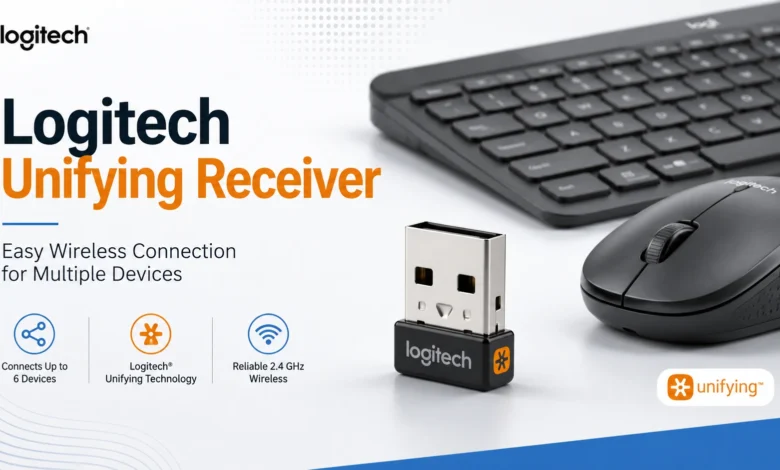
The Logitech Unifying Receiver is a specialized wireless USB dongle designed to streamline the connection of multiple Logitech wireless keyboards and mice to a single computer. Personal details or biographical data are not applicable as it is a proprietary technology product rather than an individual. This article concentrates on verified technical and operational facts about the receiver.
What Is the Logitech Unifying Receiver?
The Logitech Unifying Receiver is a small USB device that communicates using Logitech’s proprietary 2.4 GHz wireless protocol. Rather than needing a dedicated receiver for each wireless peripheral, this single dongle consolidates signal reception to serve up to six compatible Logitech devices at once. This innovation reduces the clutter of USB ports and streamlines multi-device setups for desktops and laptops.
Widely recognized among users of wireless computer accessories, the receiver is noted for its compact size, capability to maintain reliable connections at distances up to 10 meters, and compatibility with a variety of Logitech keyboards and mice. It addresses a common challenge in wireless accessory management: juggling multiple USB receivers for separate peripherals.
Design and Technology behind the Unifying Receiver
The core technology of the Logitech Unifying Receiver operates on the 2.4 GHz band, which offers stable wireless connectivity with low latency. Logitech’s proprietary protocol optimizes performance to maintain a seamless experience across multiple devices simultaneously without interference.
The receiver’s design prioritizes convenience; its small form factor fits unobtrusively in the USB port of a laptop or desktop, making it ideal for users who prefer to “set and forget” their peripherals without frequent unplugging or reassignment. Its ability to pair up to six devices simplifies both home and office workspaces.
How to Set Up the Logitech Unifying Receiver
Setting up the Logitech Unifying Receiver is straightforward and intuitive, suitable for beginners and advanced users alike. Here is a step-by-step overview of the setup process:
- Plug in the Receiver: Insert the Unifying Receiver into any available USB-A port on your computer. Most modern operating systems automatically install necessary drivers upon detection.
- Download Logi Options+ Software: For enhanced functionality, download and install the Logi Options+ app from Logitech’s official sources. This app enables device pairing, customization, and peripheral management.
- Pair Your First Device: Turn on your compatible Logitech keyboard or mouse using its power switch. Open Logi Options+, select Add Devices > Unifying Receiver, and follow on-screen steps. Confirm pairing with a click inside the app.
- Add More Devices: To connect additional Logitech devices, repeat the pairing process within Logi Options+. The receiver supports up to six connected peripherals.
This process is supported across various Logitech Unifying enabled keyboards and mice, enhancing ease of use.
Compatibility and Device Support
The Unifying Receiver supports a broad range of Logitech products identified by the Unifying logo on their device or packaging. Compatible devices include wireless keyboards, mice, and some combo sets designed for efficient multi-device operation without needing multiple receivers.
Compatibility extends to most modern Windows and macOS operating systems, with Logitech continuing to update Logi Options+ software to maintain support and introduce additional features. Users should verify device compatibility before purchase or pairing.
Performance and Range
The receiver utilizes a robust 2.4 GHz wireless connection to provide low-latency and stable communication. It offers an operating range of up to approximately 33 feet (10 meters), depending on environmental conditions and potential wireless interference.
This range and reliability cater well to both office and home environments, where users can move freely or use the devices at a desk with confidence in their connection quality. Its ability to manage six devices simultaneously also maintains performance consistency across setups.
Benefits of Using the Logitech Unifying Receiver
The receiver offers multiple practical advantages to users managing several Logitech peripherals. Key benefits include ease of setup, space-saving by requiring only a single USB port for multiple devices, and enhanced wireless reliability. This consolidates connectivity management, reducing device clutter.
Moreover, Logitech’s dedicated Logi Options+ software enhances user control, allowing customization of device buttons and features, improving workflow efficiency. The receiver’s compact design also minimizes risk of damage or loss compared to separate receivers.
Troubleshooting Common Issues
While the Logitech Unifying Receiver generally provides a smooth user experience, some common issues can arise:
- Devices Not Pairing: Ensure the receiver is properly plugged in, and the peripherals have fresh batteries and are powered on. Restarting the Logi Options+ app can help.
- Connectivity Drops: Check for wireless interference from other electronic devices or physical obstructions. Keeping devices within the recommended range improves stability.
- Multiple Receivers or Devices Confusion: Verify that paired devices match the specific receiver via the app; unpair and re-pair if necessary to resolve conflicts.
Logitech also provides official support resources for more advanced assistance.
Conclusion
The Logitech Unifying Receiver is a compact, reliable, and user-friendly wireless USB dongle that greatly simplifies connecting multiple Logitech keyboards and mice to a single computer. Its advanced 2.4 GHz technology combined with the convenience of the Logi Options+ software enables efficient management of up to six devices simultaneously, making it an essential accessory for those requiring versatile, clutter-free wireless connectivity.
Thanks to its robust performance, ease of setup, and broad compatibility, the Logitech Unifying Receiver continues to be a popular choice among users seeking to optimize their workspace with dependable wireless solutions. Explore more helpful guides about gadgets, software, apps and everyday digital technology in our Technology section.
FAQs
What is the Logitech Unifying Receiver?
The Logitech Unifying Receiver is a small USB device that connects up to six compatible wireless Logitech keyboards and mice to a single computer.
How do I set up devices with the Logitech Unifying Receiver?
Plug the receiver into your computer’s USB port, download the Logi Options+ app, turn on your Logitech device, and use the app to pair your peripherals.
Which devices work with the Logitech Unifying Receiver?
It supports a range of Logitech wireless keyboards and mice marked with the Unifying logo, ensuring compatibility across multiple products.
What is the connection range of the Logitech Unifying Receiver?
The receiver provides a wireless connection range of up to 33 feet (10 meters) under optimal conditions.
Can I use the Logitech Unifying Receiver on any computer?
It works with most modern Windows and macOS systems that support USB peripherals, though using the Logi Options+ app enhances functionality.
How many devices can I connect to a single Logitech Unifying Receiver?
You can connect and manage up to six wireless Logitech devices simultaneously with one Unifying Receiver.
Is the Logitech Unifying Receiver compatible with Bluetooth devices?
No, it uses Logitech’s proprietary 2.4 GHz wireless technology and does not support Bluetooth devices.
What should I do if my Logitech device won’t pair with the Unifying Receiver?
Check that the device is powered on, batteries are charged, software is updated, and try re-pairing through the Logi Options+ app. If issues persist, consult Logitech’s customer support.